




Dear customers,
Do you want to offer your visitors a smooth, fast browsing experience on your online store?
Today, we have an essential practice to share with you: using PrestaShop caching.
The core principle of caching is to temporarily store frequently used data so it can be delivered quickly when requested again.
By enabling caching on your site, you can significantly speed up page build times and improve overall performance (provided you handle it carefully, of course).

The benefits of a properly configured cache:
✅ Reduced build time
✅ Improved performance
✅ Optimized user experience
How do PrestaShop’s native caches work?
PrestaShop has two levels of native caching:
1. The Smarty compilation cache:
“Smarty” is your site’s display engine. It converts your theme’s files into files that can be used to build the pages. This operation (called “compilation”) is resource-intensive and should only be performed when theme files are modified.
2. The PrestaShop cache:
It stores information related to your data, avoiding unnecessary processing. It’s used by PrestaShop but can also be used by modules.
How to check the cache settings in your back office
Everything happens in the “Advanced Parameters” section, then “Performance.”
What interests us here is the “Smarty” block.
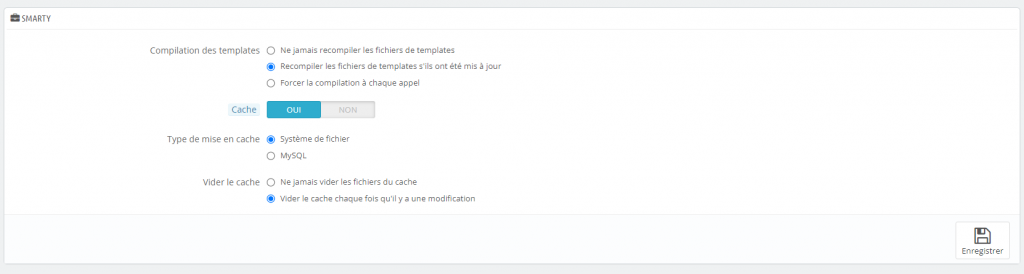
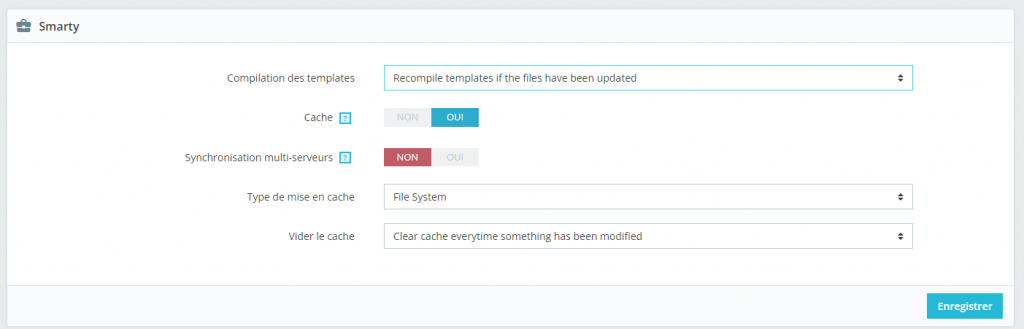
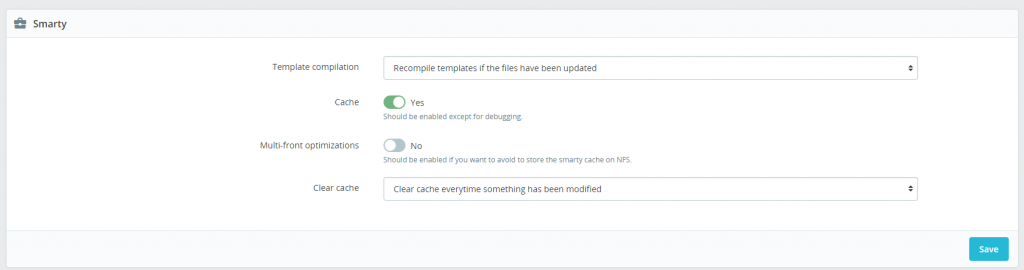
Depending on your PrestaShop version, this block may look as follows:
Version 1.6
Version 1.7
Version 8
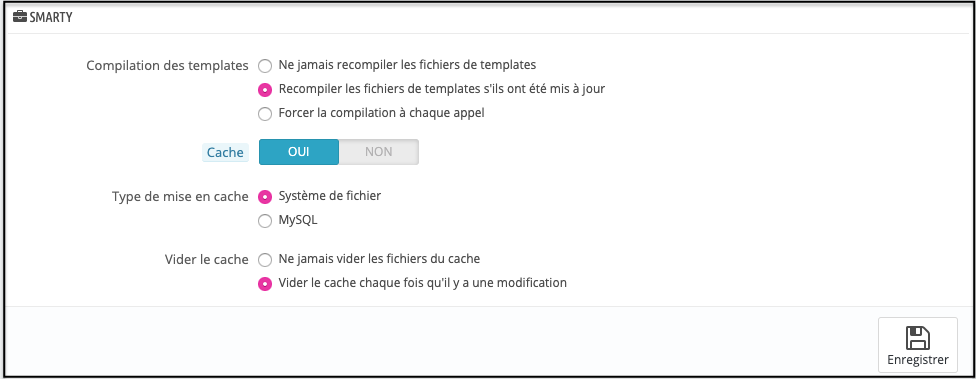
We’ll focus on version 1.6, which has the advantage of being available in English as well 🙂
Template compilation:
To generate your pages’ code (HTML), Smarty compiles your theme’s files so the server can run them. This compilation can take time, and PrestaShop offers you several options to choose from based on your needs.
– Never recompile template files: HTML pages are compiled and cached beforehand, and then displayed without change, even if the theme is modified.
🟠 This setting is not recommended, as you risk not seeing changes made in your back office reflected on the site.
– Recompile template files if they have been updated: Compilation and caching work the same way as with the first option. The difference is that, if you make changes from the back office, you’ll be able to see them (and so will your visitors).
🟢 This is the best option: it ensures both optimized performance and the best experience for your audience.
– Force compilation on every call: As mentioned above, compilation is an operation that can take a long time and significantly increase build times.
🔴 Having pages build every single time they’re called is the worst option. You’ll end up with build times that are far too long, and the user experience will suffer as a result.
Cache:
PrestaShop’s cache is managed by default via a file-based system.
It’s strongly recommended to always leave this setting on “yes.”
Clear cache:
The best choice here is “clear the cache whenever there’s a change.”
Indeed, the “never clear cache files” option won’t let you see site changes in real time, nor will it save any loading time.
| 💡Practical tip: remember to test your site’s performance before and after enabling your site’s cache(s) to see the benefits for yourself. |
| ⚡ Careful! Enabling caching isn’t a minor change. Any configuration change should be followed by a thorough check of your online store. Don’t hesitate to consult us for more information and to review the caching setup best suited to your site. |